This guide covers ModHeader Extension, an ad-free HTTP header editor for Chrome that needs no account and reads existing ModHeader backups.
Install ModHeader Extension
Add it from the Chrome Web Store, then click the puzzle icon in the toolbar and pin it. The pinned icon opens a small popup with your active profile, its rules and two buttons: Add header and Open editor.
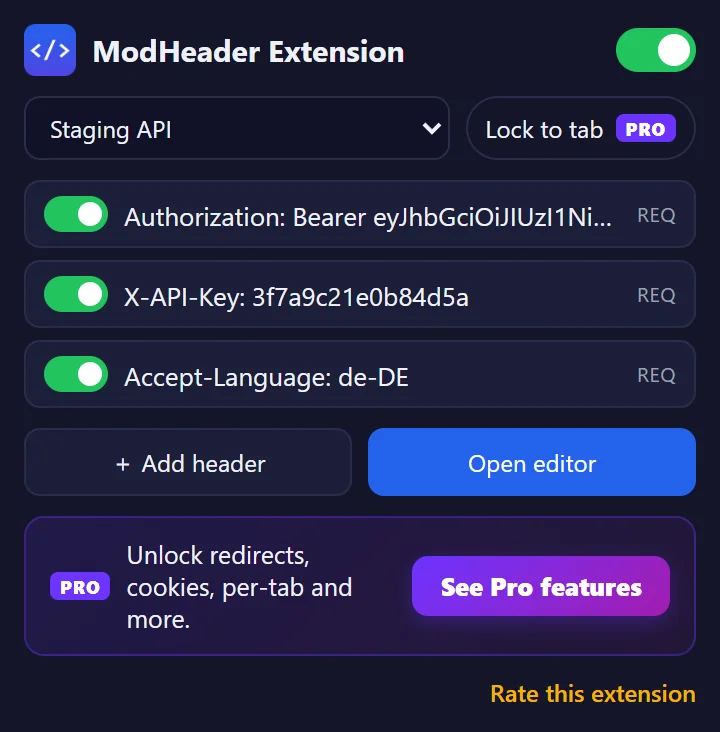
The popup is for quick changes. The editor, which opens in a full tab, is where you manage profiles, rule types and targeting.
Add your first header
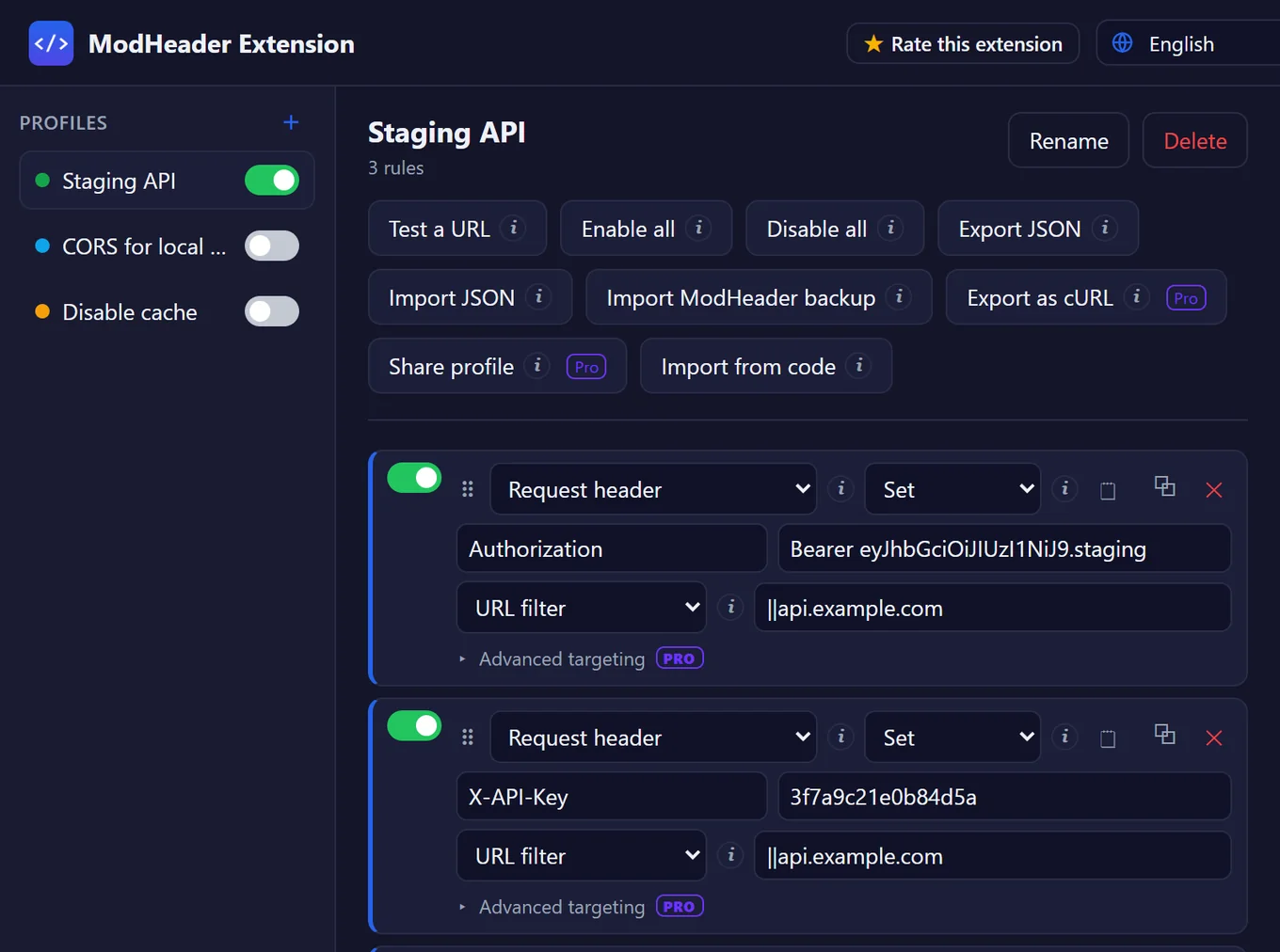
- Create a ruleClick the icon and choose Add header. The editor opens with a new rule ready, set to Request header and Set. Inside the editor, Add rule does the same.
- Type the name and the valueFor example
AuthorizationandBearer your-token. Each field saves when you leave it. - Reload the pageThe rule is active immediately, but the page has to send its requests again to pick up the new header.
Request headers or response headers
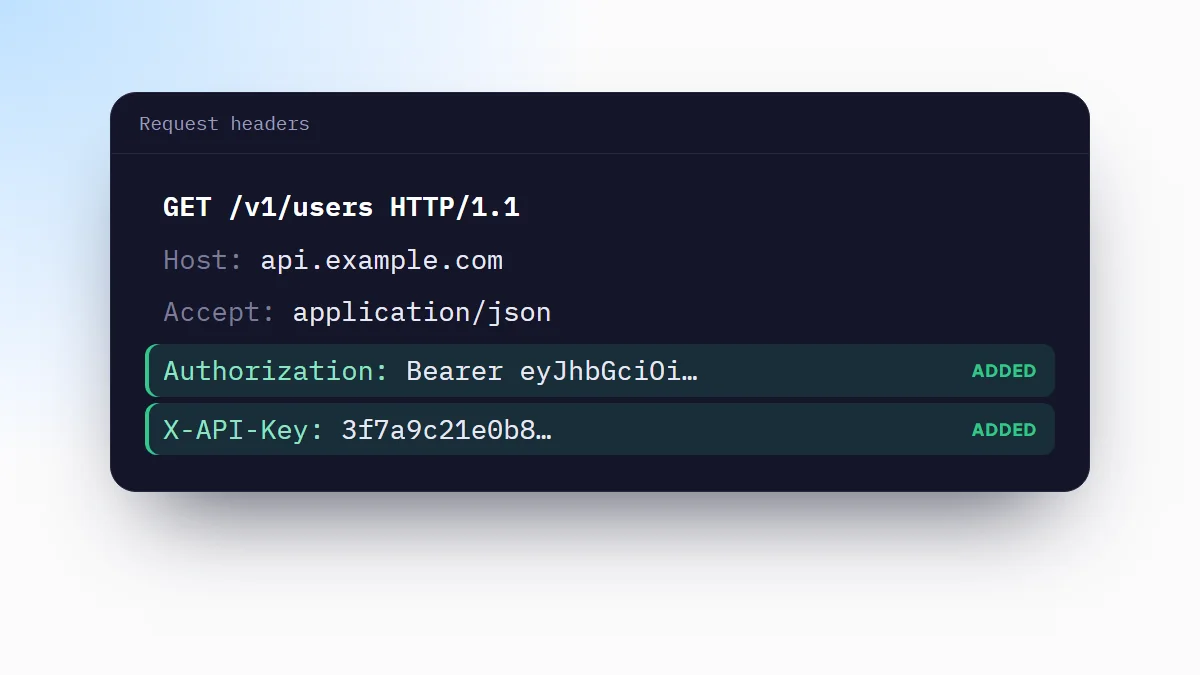
A request header travels from Chrome to the server. Use it to send credentials (Authorization, X-API-Key), feature flags, a language (Accept-Language) or any custom header your backend reads; the guide to adding a custom header in Chrome has ready-made examples.
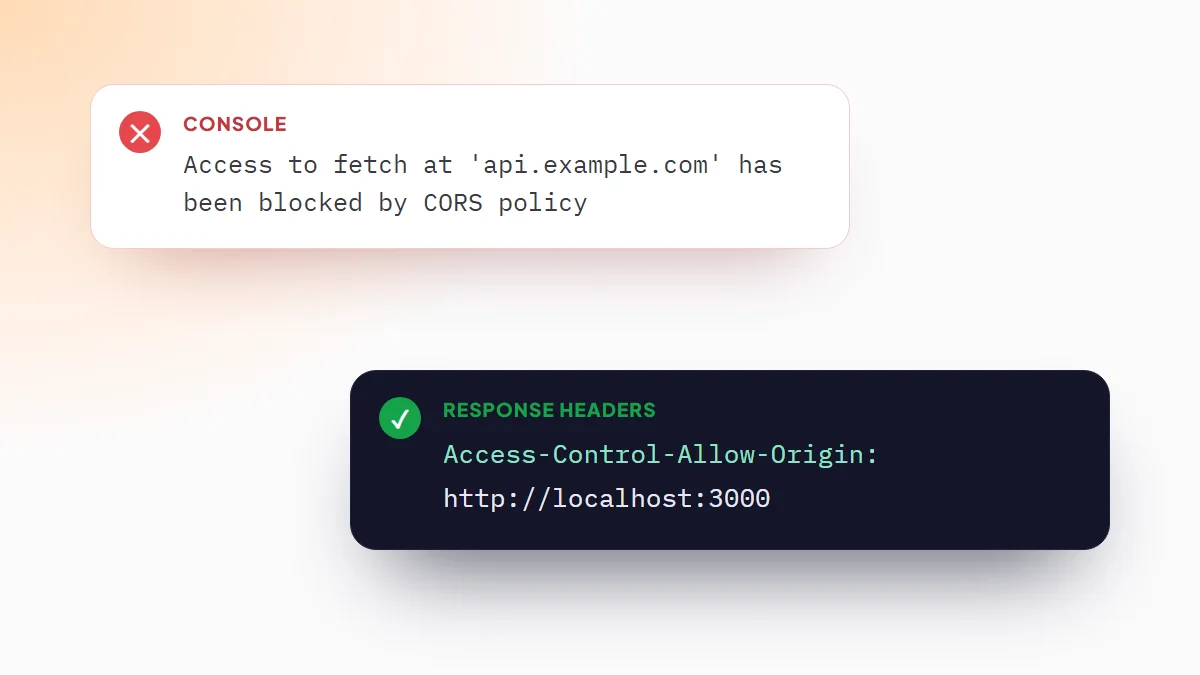
A response header is what the server sends back, and Chrome acts on it before the page sees it. Changing one lets you test browser behavior without touching the server: add Access-Control-Allow-Origin to fix a CORS error in Chrome during development, or remove Content-Security-Policy to check whether a policy is what breaks an embed.
Both types are free and use the same fields. Pick the type in the rule's first menu.
Set, append or remove
- Set replaces the header's value, or adds the header if it is missing. This is what you want most of the time.
- Append adds your value to the existing one, for headers that accept lists.
- Remove deletes the header. The value field disappears because it is not needed.
Choose where a rule applies
The Apply to menu decides which requests get the header:
- All URLs: every request from every site. Fine for a quick test, risky for credentials.
- URL filter: only matching requests.
||api.example.commatches that domain and its subdomains;*works as a wildcard, as in||example.com/api/*. - Regex (Pro): a regular expression for precise paths, subdomains or query strings.
An Authorization header on All URLs is sent to every site you open, including third-party scripts. Always put credentials behind a URL filter.
Organize rules in profiles
A profile is a named set of rules, for example one per project or environment. Every profile that is switched on applies at the same time; the menu in the popup only chooses which one you see and edit. Each profile has its own switch in the editor's profile list, and the popup marks the ones that are off. Rules and the whole extension can be turned off the same way, without deleting anything. Alt+Shift+H toggles all rules from the keyboard.
New profiles can start blank or from a template:
- CORS (allow all): permissive CORS response headers for local development.
- Bearer token: an
Authorization: Bearerrequest header ready for your token. - Disable cache:
Cache-ControlandPragmaset tono-cache. - JSON API:
Content-TypeandAcceptset toapplication/json. - Remove CSP & X-Frame-Options: strips the headers that block embedding, for testing an iframe that refuses to connect.
With Pro, Lock to tab binds a profile to the current tab only, so you can compare the same page with and without your headers side by side.
Test a URL before you rely on it
In the editor, Test a URL takes an address, a method and a request type, and lists every rule in the active profile with a check or a cross. For each rule that would not apply, it says why: the rule is disabled, the URL filter does not match, the method or request type is different, the domain is excluded, or the rule needs Pro.
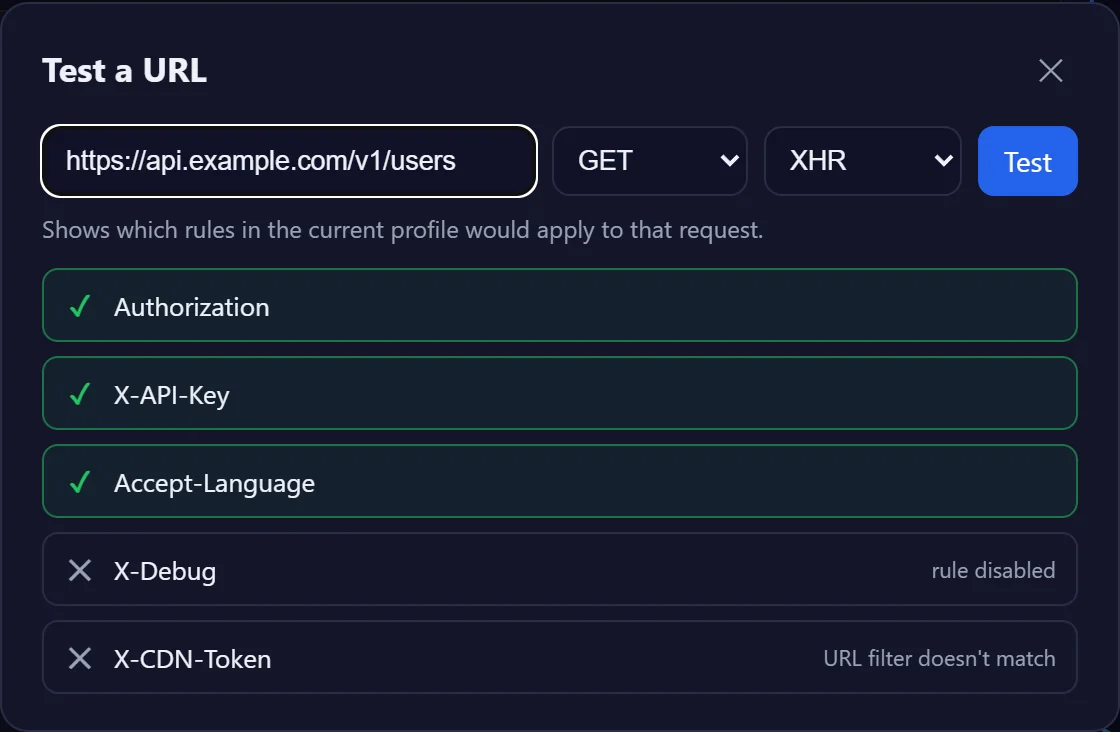
It answers the most common question, "why is my header not being sent?", without opening DevTools.
Check the header in DevTools
To confirm a header on a real request, open DevTools (F12), go to the Network tab, reload the page and select a request. Request headers appear under Request Headers; response headers under Response Headers.
When a header is not applied
Most problems come down to one of these, in this order:
- Something is switched off. The rule, its profile or the whole extension can be off. The switch at the top of the popup controls all rules at once.
- Another profile is also on. All switched-on profiles apply together, so an old rule in a profile you are not looking at can override yours. Turn off the profiles you are not using.
- The URL filter does not match.
||example.comdoes not matchapi.example.org. Paste the exact request URL into Test a URL. - The page was not reloaded. Requests that already happened keep their old headers.
- The response came from a cache. A service worker or the HTTP cache can answer without a network request. Tick Disable cache in the Network tab, or use the Disable cache template.
- The browser owns that header. See the list below.
Import your ModHeader backups
If you already have rules in ModHeader, export them there as JSON, then use Import ModHeader backup in the editor. Imported profiles are added next to the ones you have; nothing is overwritten. Other header editors read the same backups; the ModHeader alternatives comparison covers what each one does.
Export JSON saves all your profiles to a file, which is the way to move them to another computer or keep a backup. Import JSON loads that file back.
Headers Chrome won't let you change
Chrome keeps some connection headers for itself, and no extension can change them: Host, Connection, Keep-Alive, Content-Length, Transfer-Encoding, Upgrade, TE, Trailer and any Proxy-* header. The editor warns you when you type one of them.
User-Agent, Origin and Referer can be changed in the request the server receives. JavaScript on the page still reads the real values, for example through navigator.userAgent. The guide on how to change the User-Agent in Chrome compares the ways to do it.
What Pro adds
The free version covers headers, profiles, URL filters, testing and import or export. Pro is a one-time purchase of 4.99 USD that adds:
- Redirects from one URL to another.
- A cookie editor for
CookieandSet-Cookie. - Request blocking, for trackers, ads or any URL.
- Regex conditions, HTTP method and request type filters, and excluded domains.
- Per-tab profiles, profile sharing with a short code, and export to a ready-to-run cURL command.
Frequently asked questions
What is ModHeader Extension?
A Chrome extension that adds, changes or removes the HTTP headers your browser sends and receives, with profiles, URL filters and an optional one-time Pro upgrade. It has no ads and needs no account.
How do I use the ModHeader Chrome extension?
Click its icon and choose Add header. In the editor that opens, pick Request header or Response header, type the header name and value, and reload the page. The rule applies to every request that matches it.
Does ModHeader work on every website?
It works on any site you point a rule at, except pages Chrome protects from all extensions, such as chrome:// pages and the Chrome Web Store. A few headers, like Host or Content-Length, are controlled by the browser and cannot be changed.
Is ModHeader Extension free?
Yes. Request and response headers, profiles, URL filters, Test a URL and import or export are free. Pro is a one-time 4.99 USD purchase that adds redirects, cookies, request blocking, regex and more.