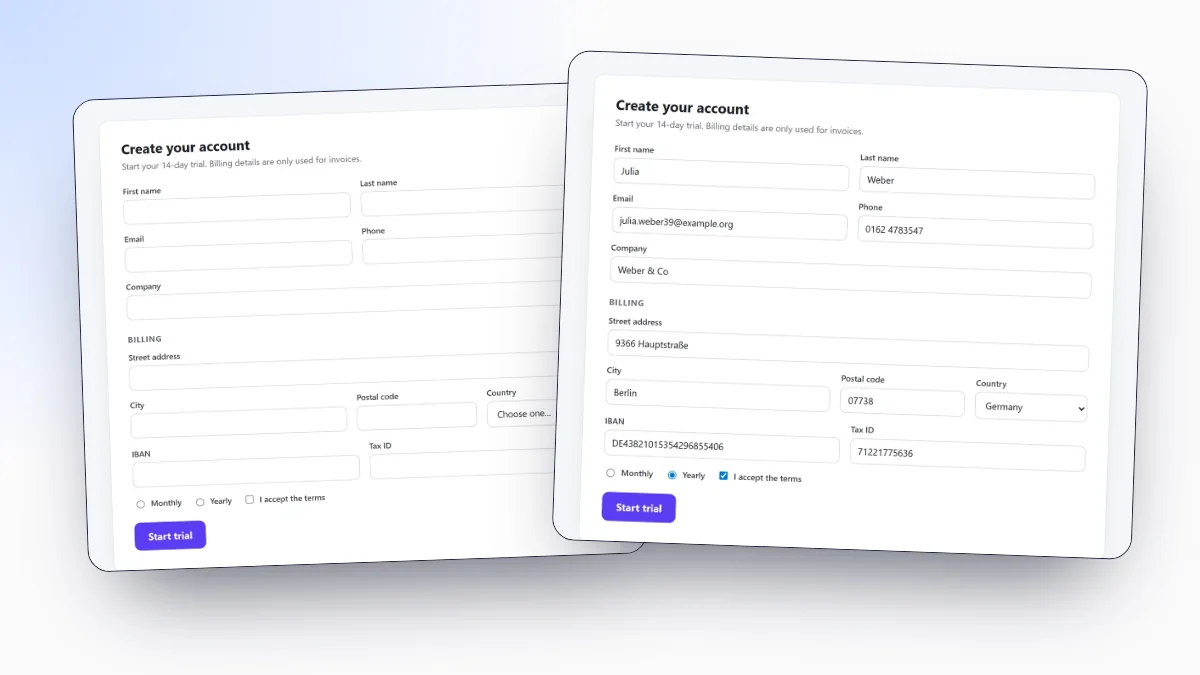
Chrome can already autofill forms: it stores your addresses and cards and offers them when a field matches. That is built for filling in your own details on real sites. When you are testing a form you need something else: a different, made-up person every time, in every field, including the ones Chrome ignores such as company, tax ID or IBAN.
Chrome autofill vs. test data
| Chrome autofill | Form Filler | |
|---|---|---|
| Data it enters | Your saved details | New fake data each time |
| How you trigger it | Pick a suggestion in a field | One shortcut for the whole page |
| Fields covered | Name, address, email, phone, card | Every text field, dropdown, radio button and checkbox |
| Country formats | Whatever you saved | 8 locales, switchable |
Autofill a form in three steps
- Install Form FillerAdd it from the Chrome Web Store. It needs no account and no setup; a welcome page opens once.
- Open the formAny page with a form: your local development server, staging or a live site.
- Press Alt+Shift+FEvery visible field is filled at once. You can also right-click the page and choose Fill this form with test data, or click the toolbar icon and then Fill this form.
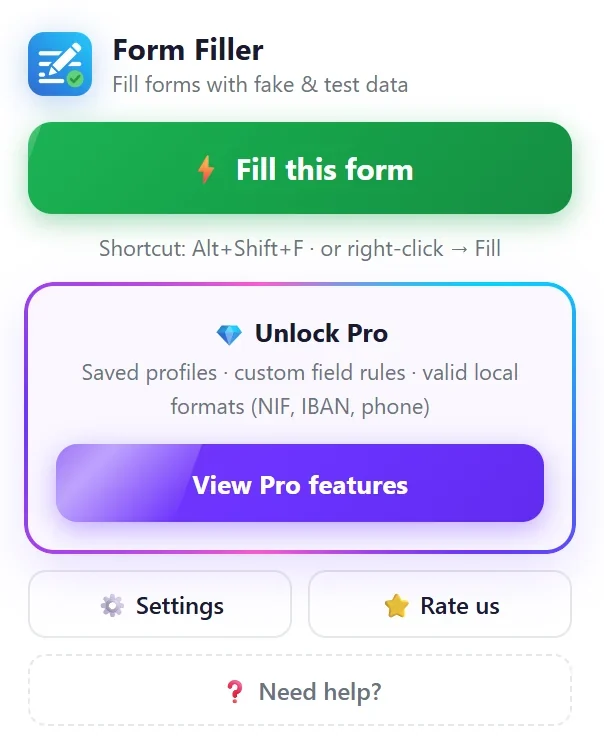
Press the shortcut again to get a new set of values. With Overwrite filled fields on (the default), everything is replaced; turn it off to fill only the empty fields and keep what you typed.
Choose the country of the data
Open the extension's Settings and change Data format. The options are English (US), English (UK), Spanish (Spain), Spanish (Mexico), Portuguese (Portugal), French, German and Italian. Names, cities, streets, phone numbers and postal codes follow that country.
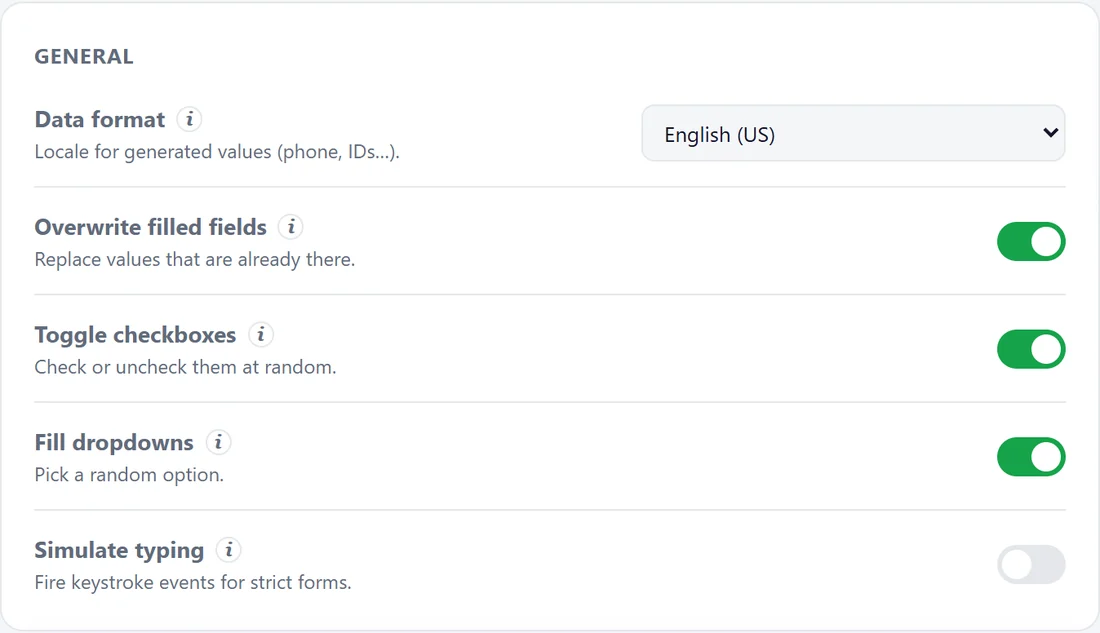
The other switches in the same card:
- Toggle checkboxes checks or unchecks each one at random.
- Fill dropdowns picks a random option and skips placeholders like "Choose one…".
- Simulate typing types each value character by character, with key events, for forms that validate on every keystroke. It is a little slower.
What gets filled
Form Filler looks at each field's type, name, id, placeholder, label, aria-label and autocomplete attribute to decide what goes in it. It fills:
- Text, email, phone, number, date, URL, color and password inputs, and text areas.
- Native dropdowns, and the ones replaced by select2, Chosen or nice-select.
- Radio groups (one option per group) and checkboxes.
- Editable areas (
contenteditable), and fields inside open Shadow DOM. - Forms in iframes from the same site.
Values are written through the browser's native setter, followed by input and change events, so React, Vue and Angular update their state and the form does not reset when you submit it.
Always the same test email, or a different ID format
Random data is not always what you want. Sometimes the email has to be an inbox you can open, or a field called billing_vat should get a tax ID and not a random word. Form Filler Pro, a one-time purchase, adds:
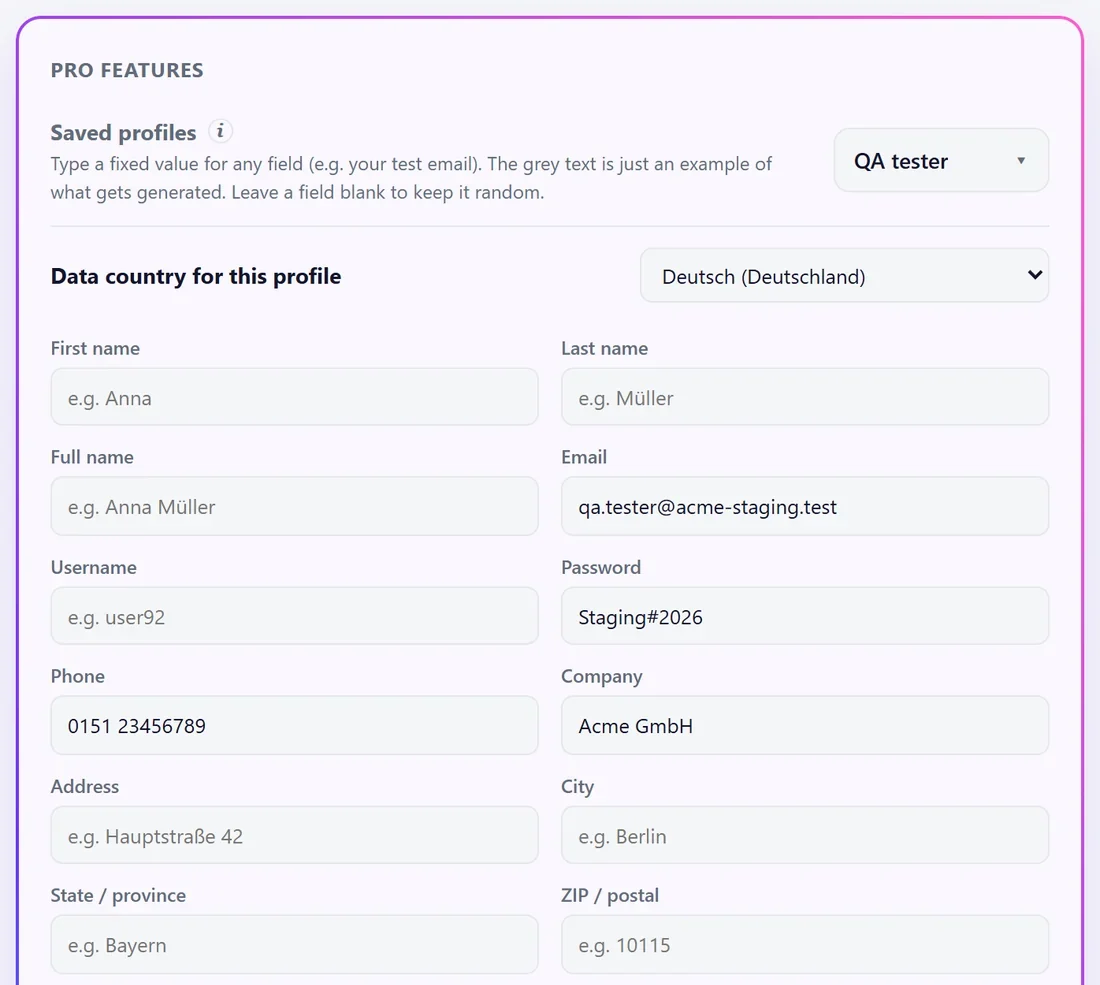
- Saved profiles: fixed values for any field (your test email, a known password), each profile with its own data country. Blank fields stay random.
- Custom field rules: one line per rule,
pattern = kind. For examplebilling_vat = niforinvoice_id = number. - Never-fill list: fields whose name or label matches are left alone, such as
coupon,searchorcaptcha. - Field formats: force the email domain, set the number range, limit the length of message fields.
- Valid IBANs and national IDs for the data country, and import and export of all your settings.
Change the keyboard shortcut
If Alt+Shift+F clashes with another tool, open chrome://extensions/shortcuts, find Form Filler and click the pencil next to its fill command. Press the new combination and it is saved.
When a field is not filled
- "Can't fill this page": Chrome blocks extensions on
chrome://pages, the Chrome Web Store and other extensions' pages. Normal sites andlocalhostwork. - "No fillable fields found": the fields are hidden, disabled or read-only, or the form has not been rendered yet. Open the step of the form you want and try again.
- A field gets the wrong kind of value: its name and label do not say what it is. Give it an
autocompleteattribute (good for real users too) or add a custom rule with Pro. - Fields in a closed Shadow DOM or in an iframe from another domain cannot be reached by extensions that only get access to the page you are on.
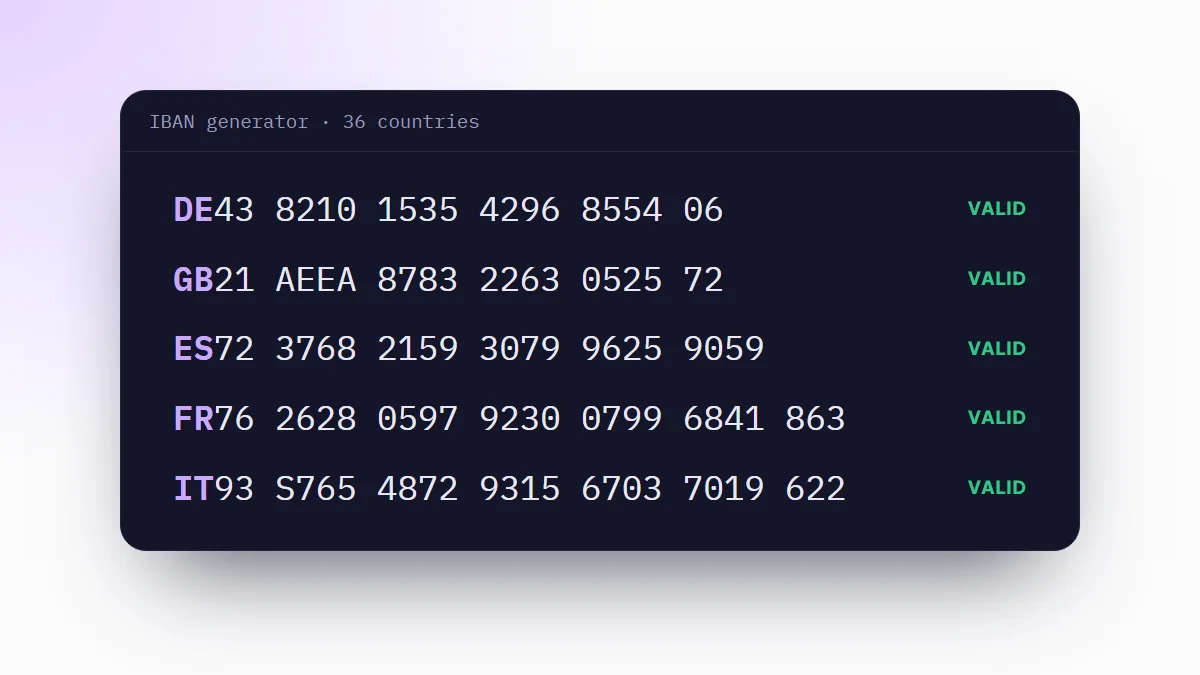
For automated test runs, where nobody presses a shortcut, generate the values in the test itself. How to generate test data for web forms shows how with Faker, and the IBAN generator covers a single bank field.
Frequently asked questions
Can Chrome autofill forms with fake data by itself?
No. Chrome's autofill only enters the addresses, payment methods and passwords you saved, and you pick them field by field. Generating new fake data needs an extension.
What is the keyboard shortcut to fill a form?
Alt+Shift+F in Form Filler. You can change it at chrome://extensions/shortcuts.
Why does it say it can't fill this page?
Chrome does not let extensions run on its own pages (chrome://), on the Chrome Web Store or on other extensions' pages. Try the form on a normal website or on localhost.
Does it work with React, Vue and Angular forms?
Yes. Form Filler sets values through the browser's native input setter and fires input and change events, which is what those frameworks listen to. If a form validates on every keystroke, turn on Simulate typing.
Does it send my form data anywhere?
No. Form Filler runs in your browser, has no account and no telemetry, and only acts on the tab where you trigger it.